Friday, 24 August 2012


First Java Program


To write java program you will need :-

1)
The Java SE Development Kit 7 (JDK 7).
2)
A text editor as Notepad , Eclipse , Editplus etc.
You had seen how to install JDK 7 and it's previous versions .If anyone don;t know then they can visit the previous posts . So let start work on editor .


Creating Your First Application

Through this basic program you will be able to print and display the greetings "Hello world!". To create this program, you will:

1.Create a source file.
Source file will be crated by using java programming language by following syntax that is discussed below. You can use any text editor to create and edit source files.

2. Compile the source file into a ".class" file
 The Java programming language compiler (javac) takes your source file and translates its text into instructions that the Java virtual machine can understand. The instructions contained within this file are known as bytecodes.

3. Run the program To run your application Java virtual machine will be used by Java application launcher tool(java).

Create a Source File:-


First, start your editor. You can launch the Notepad editor from the Start menu by selecting Programs > Accessories > Notepad. In a new document, type in the following code:
/**
 * The HelloWorldApp class implements an application that
 * simply prints "Hello World!" to standard output.
 */
class HelloWorldApp {
    public static void main(String[] args) {
        System.out.println("Hello World!"); // Display the string.
    }
}

Be Careful When You Type
Note: Type all code, commands, and file names exactly as shown. Both the compiler (javac) and launcher (java) are case-sensitive, so you must capitalize consistently.

HelloWorldApp is not the same as helloworldapp.

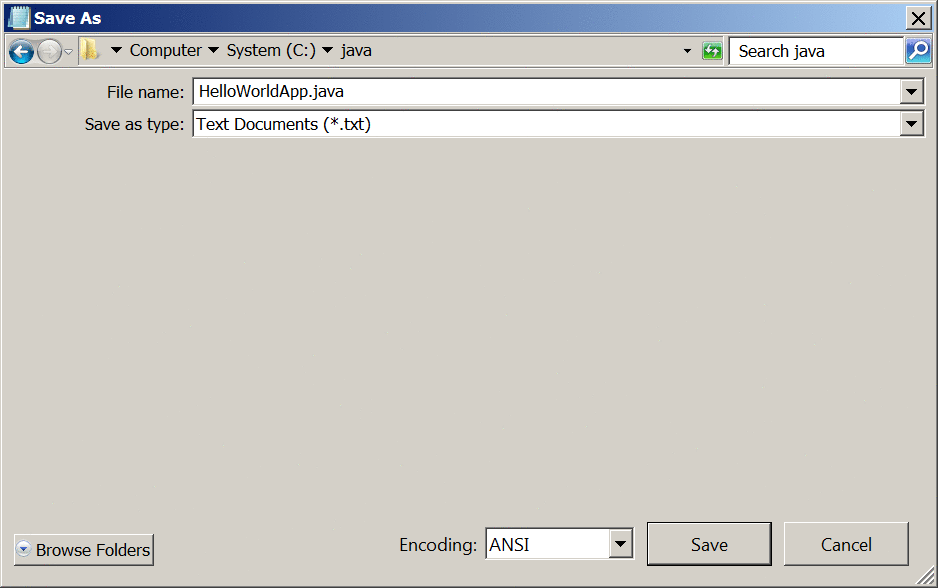
1)Now Save the code in a file with the name HelloWorldApp.java. To do this in Notepad, first choose the File > Save As menu item. Then, in the Save As dialog box:
2)Using the Save in combo box, specify the folder (directory) where you'll save your file. In this example, the directory is java on the C drive. In the File name text field, type "HelloWorldApp.java", including the quotation marks.
3)From the Save as type combo box, choose Text Documents (*.txt). In the Encoding combo box, leave the encoding as ANSI.

Now follow the steps to save and compile this java code on compiler .
1) Click Save and exit here .

Now steps to compile the Source File into a .class File
This can be done by starting the Start menu by choosing Command Prompt (Windows XP), or by choosing Run... and then entering cmd. The shell window should look similar to the following figure.
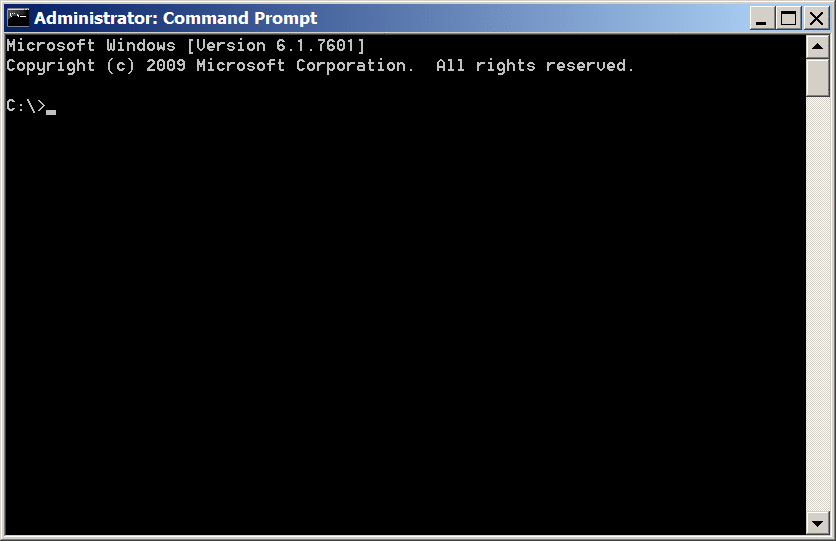
The prompt shows your current directory. When you bring up the prompt, your current directory is usually your home directory for Windows XP (as shown in the preceding figure.
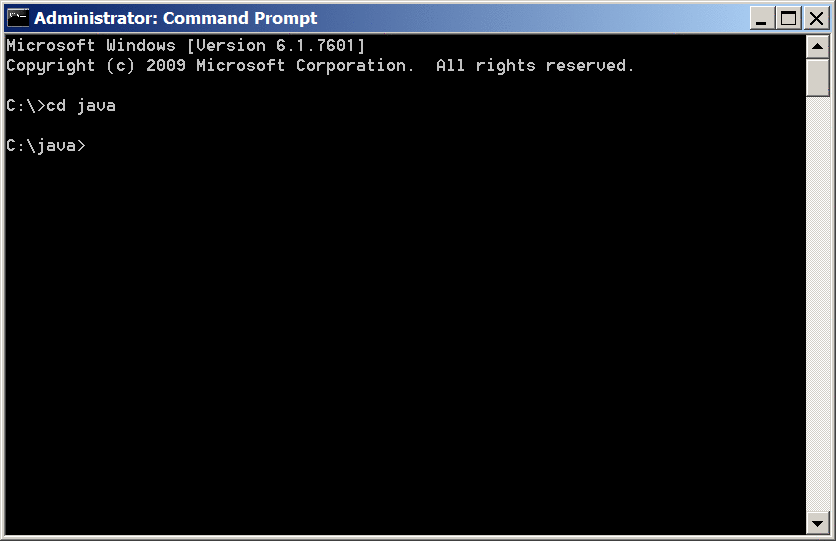
To compile your source file, change your current directory to the directory where your file is located. For example, if your source directory is java on the C drive, type the following command at the prompt and press Enter:
cd C:\java
Now the prompt should change to C:\java>.
Note: To change to a directory on a different drive, you must type an extra command: the name of the drive. For example, to change to the javadirectory on the D drive, you must enter D:, as shown in the following figure.

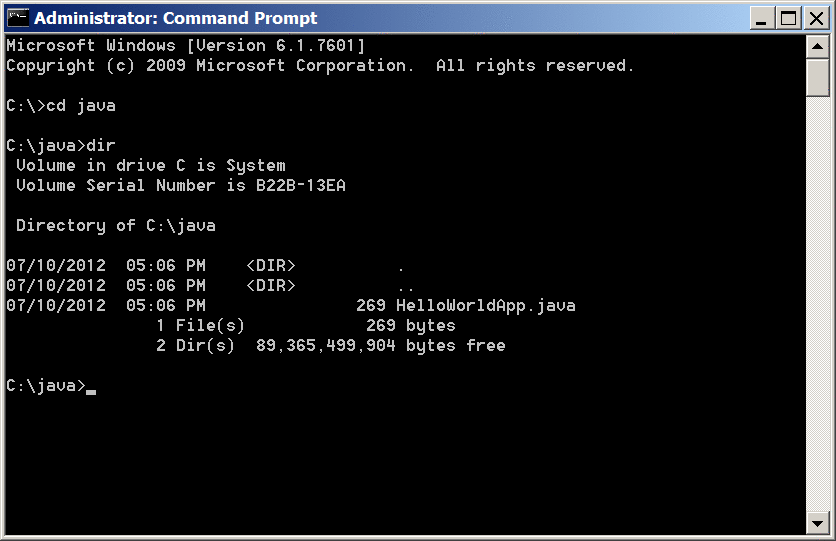
You can see your source file of the directory you kept this file, as the following figure shows.
Now be ready to compile. At the prompt, type the following command and press Enter.
javac HelloWorldApp.java
The compiler has generated a bytecode file," HelloWorldApp.class ". At the prompt, type dir to see the new file that was generated, as shown in the following figure.

Run the Program

You have a .class file, you can run your program.
In the same directory, enter the following command at the prompt:
java HelloWorldApp
The next figure shows what you should now see:
So now you will get output as "Hello World!".
So you have successfully printed the first program of Java. Congratulations!

Friday, 17 August 2012


Setting up JAVA Part -2


Be ready to install JDK in your PC's .
1) Double-click on the install file and it should open an installer 
2)Click next, then read and accept the license.
3) On the next screen you will encounter some options. Just leave these alone and click next unless you know what you are doing. (Because this is being read it is assumed that you do not.)
4) The next page you encounter should install (and in some cases download) the Java Development Kit.
5) After the installer is finished, open run by clicking Start > Run... or by typing Windows Key + R.
6)In the text box, type "cmd" and click "OK".
7)A simple window called "Command Prompt " should be opened with a black background and a text prompt.
8)After focusing the window, type "javac" and press enter. If the prompt returns something along the lines of: "'javac' is not recognized as an internal or external command, operable program or batch file" then continue with the next step.
9) Open the properties of "My Computer" by either right-clicking the icon on the desktop or right-clicking Start > My Computer. When the pop up menu opens, scroll to the bottom and select "Properties".
10) This should open a window named "System Properties". Click on the "Advanced" tab and then click "Environment Variables".
11) Now choose path in System Properties and click on edit .After clicking new pop window will open .
So then as u can see u will have to set path as ";C:\Program Files\Java\jdk1.6.0\bin;" and click " ok " .So now you have set the Jdk path globally .
12) Now check wether JDK is installed or not .Just open your "CMD " and type "javac" if Jdk is installed then you will get this result .
so it's confirmed that "java" is installed in your PC . Now you can run any java program in your PC.

Thursday, 16 August 2012


Setting up JAVA -Part1

From 1st page you will navigated to this 2nd page page further :
  1.  If you don't already have a 1.6 or greater Java Standard Edition SDK(Software Development Kit ), you need it . If you're on Linux, Windows or Solaris , you can get it for free from java.sun.com(Sun's website for Java developers). The SDK includes everything you need to compile and run Java . If you're running Mac OS X 10.4 , the Java SDK is already installed .It's part of OS X and you don't have to do anything else . 
  2. The SDK includes everything you need to compile and run Java . If you are running Mac OS X , the Java SDK is already installed .It's part of OS X . and you don't have to do anything .
  3. So Firstly you will have to go to this link : http://www.oracle.com/technetwork/java/javase/downloads/index.html  .As you can see the above page pics of oracle ,the first thing you will have to do is to choose that you will "Accept License aggrement " then only you will be able to download .exe file of JDK .So be aware of this . Now choose any JDK zip file according to your OS .Choose as for example if your OS is Windows 7 32 bit then choose " Windows x86 " and download the zip file related to it . So just after clicking you will download your JDK file .and so you have downloaded your JDK .
  4. Now unzip the file of JDK and be ready to install it in your PC's .
  5. See another post how to install this JDK in your PC.
     

Sunday, 5 August 2012

What to know about Java


JAVA is an object oriented programming language which is platform independent and very secure for use on the internet. JAVA is the first technology to fully integrate a programming language and services for threads, sockets, GUI components etc. so we can build programs that can run on a wide range of different types of hardware architectures and many types of operating systems. Java has features for networking as well as distributing objects in an enterprise environment.
History of JAVA: - Java development began at Sun Microsystems in 1991. Java was created by ‘James Gosling’. The Java development began by using C++ as their model but later altered it so as to have simplified syntax, increased robustness, better security features and greater portability across different operating system platforms. This effort evolved into a language code named ‘Oak’ which was later renamed as Java.


Characteristics of Java:-
Java has following main characteristics:
(i) Simplicity: - Java is easier to learn and use than other high level language such as C and C++.
(ii) Networking Features: - Java supports networking and distribution of objects in an enterprise environment. Java library i.e. java.net enables network computing easily.
(iii) Interpretation of programs: - Java compiler translates java source code into byte code rather than an executable binary code. The Java interpreter then processes this byte code to run a java program, on the specified operating system and hardware.
(iv) Robustness: - Java platform is so designed that java programs run correctly and do not fail if some unexpected error occurs.
(v) Security: - Java programs can be either the one that has originated in the local machine or the one that is downloaded from the network. The former is considered to be safe but the latter can be unsafe. JVM runs such untrusted code in a special area with limited privileges called sandbox. Code executing in the sandbox has limited access to the local file system. It has not allow to perform such actions that can harm the local system resources.
(vi) Portability: - Java program can run on any processor, operating system and hardware-platform.
(vii) Multithreaded: - Java includes classes that specifically support multithreaded programs. Multithreading refers to the concurrent execution of different segments of a single program, simultaneously.

Friday, 3 August 2012

Difference Between Procedural Programing Languages (PPL) and Object Orientation Languages (OOL)


We will discuss both of them step by step :-


1)OOL applications are developed and based on real time while PPL are more concerned with the processing of procedures and functions.
2)In PPL, its possible to expose Data and/or variables to the external entities which is strictly restricted IN OOL.
In OOL, more emphasis is given on data rather than procedures, while the programs are divided into Objects and the data is encapsulated (Hidden) from the external environment, providing more security to data which is not applicable or rather possible in PPL.


3) In OOL, functions communicate with each other by objects which is the main run time entity to operate while there is no communication in PPL rather its simply a passing values to the Arguments to the Functions and / or procedures.
4)
OOL concepts includes Inheritance, Encapsulation and Data Abstraction, Late Binding, Polymorphism, Multithreading, and Message Passing while PPL is simply a programming in a traditional way of calling functions and returning values.
Below is the list of OOL languages :- JAVA, VB.NET, C#.NET Below is the list of PPL languages :- C, VB, Perl, Basic, FORTRAN.