First Java Program
To write java program you will need :-
1) The Java SE Development Kit 7 (JDK 7).
2) A text editor as Notepad , Eclipse , Editplus etc.
You had seen how to install JDK 7 and it's previous versions .If anyone don;t know then they can visit the previous posts . So let start work on editor .
Creating Your First Application
Through this basic program you will be able to print and display the greetings "Hello world!". To create this program, you will:
1.Create a source file.
Source file will be crated by using java programming language by following syntax that is discussed below. You can use any text editor to create and edit source files.
The Java programming language compiler (javac) takes your source file and translates its text into instructions that the Java virtual machine can understand. The instructions contained within this file are known as bytecodes.
3. Run the program To run your application Java virtual machine will be used by Java application launcher tool(java).
Create a Source File:-
First, start your editor. You can launch the Notepad editor from the Start menu by selecting Programs > Accessories > Notepad. In a new document, type in the following code:
/**
 * The HelloWorldApp class implements an application that
 * simply prints "Hello World!" to standard output.
 */
class HelloWorldApp {
    public static void main(String[] args) {
        System.out.println("Hello World!"); // Display the string.
    }
}
Be Careful When You Type
Note: Type all code, commands, and file names exactly as shown. Both the compiler (javac) and launcher (java) are case-sensitive, so you must capitalize consistently.
HelloWorldApp is not the same as helloworldapp.
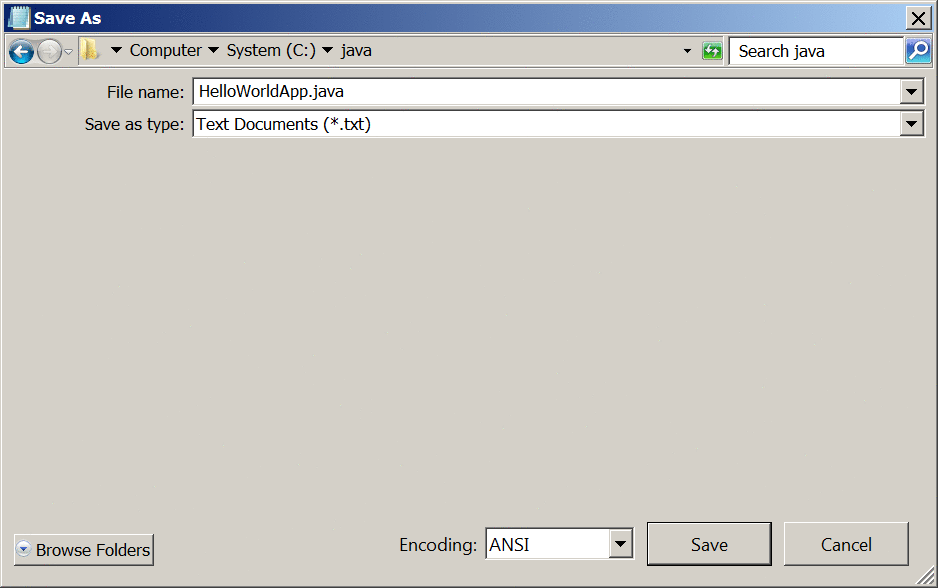
1)Now Save the code in a file with the name HelloWorldApp.java. To do this in Notepad, first choose the File > Save As menu item. Then, in the Save As dialog box:
2)Using the Save in combo box, specify the folder (directory) where you'll save your file. In this example, the directory is java on the C drive. In the File name text field, type "HelloWorldApp.java", including the quotation marks.
3)From the Save as type combo box, choose Text Documents (*.txt). In the Encoding combo box, leave the encoding as ANSI.
Now follow the steps to save and compile this java code on compiler .
1) Click Save and exit here .
Now steps to compile the Source File into a .class File
This can be done by starting the Start menu by choosing Command Prompt (Windows XP), or by choosing Run... and then entering cmd. The shell window should look similar to the following figure.
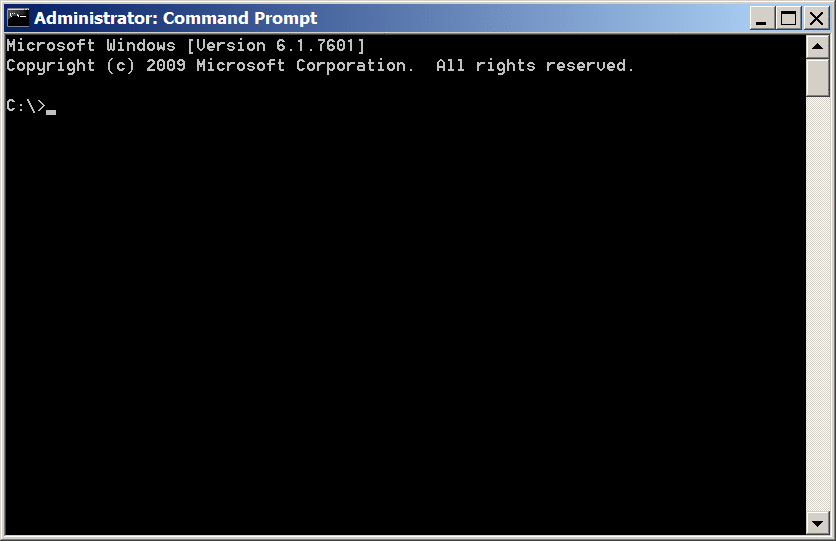
The prompt shows your current directory. When you bring up the prompt, your current directory is usually your home directory for Windows XP (as shown in the preceding figure.
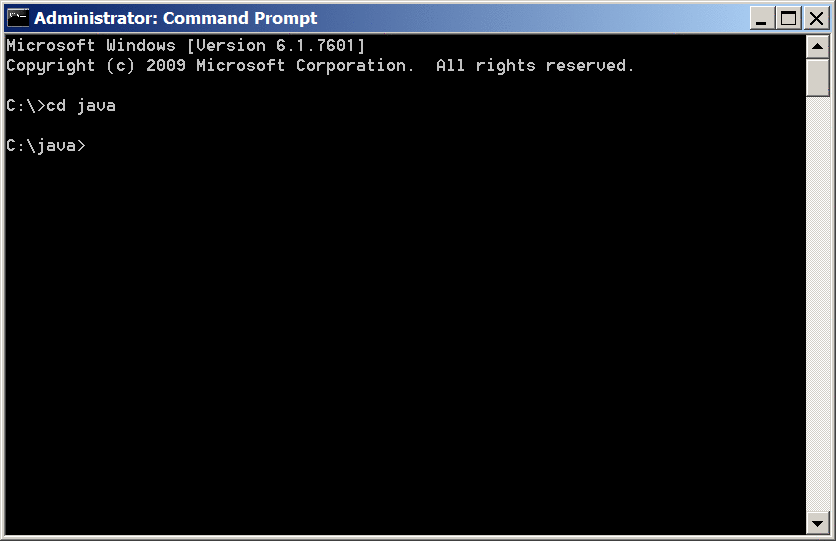
To compile your source file, change your current directory to the directory where your file is located. For example, if your source directory is java on the C drive, type the following command at the prompt and press Enter:
cd C:\java
Now the prompt should change to C:\java>.
Note: To change to a directory on a different drive, you must type an extra command: the name of the drive. For example, to change to the
javadirectory on the D drive, you must enter D:, as shown in the following figure.
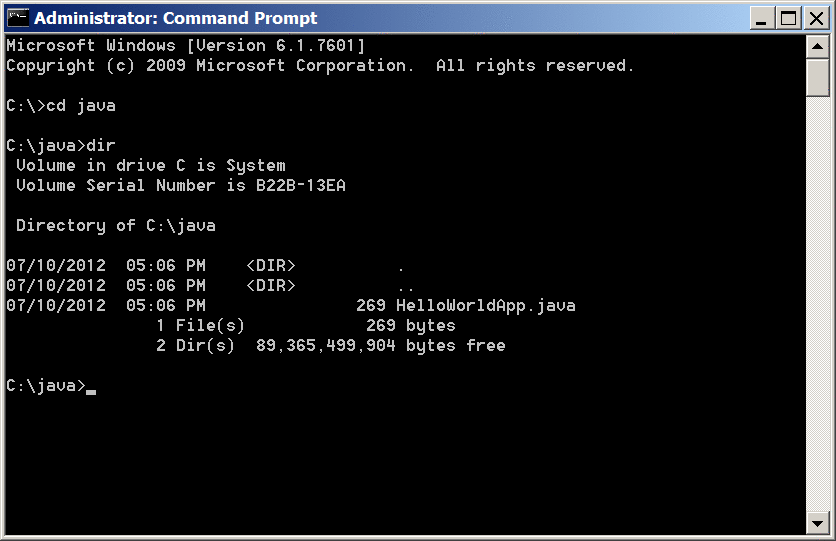
You can see your source file of the directory you kept this file, as the following figure shows.
Now be ready to compile. At the prompt, type the following command and press Enter.
javac HelloWorldApp.java
The compiler has generated a bytecode file," HelloWorldApp.class ". At the prompt, type dir to see the new file that was generated, as shown in the following figure.

Run the Program
You have a .class file, you can run your program.In the same directory, enter the following command at the prompt:
java HelloWorldApp
The next figure shows what you should now see:

So you have successfully printed the first program of Java. Congratulations!
